How to set a live wallpaper on Mac
Last updated: August 2026
macOS is a near miss here. It ships dynamic wallpapers — the desert and beach ones that shift from morning to night — and it’ll play a video as a screen saver. What it won’t do is put a moving wallpaper on your desktop while you’re using it. For that you need an app.
Here’s the whole thing.
1. Install Wallpaper Reactor
Grab the free download for macOS. Take the direct download rather than the App Store build — the store version is a cut-down “Lite” release, and the direct one is the full app.
No account needed for anything below.
2. Open Browse and pick something
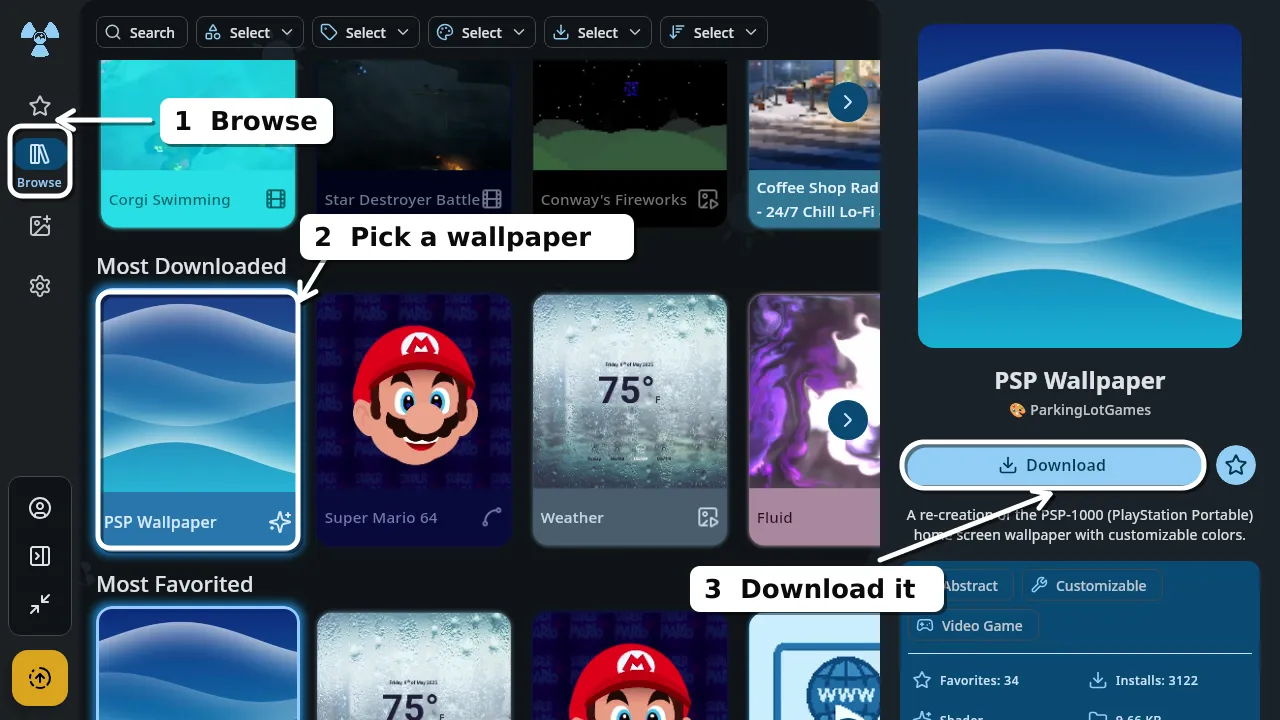
The Browse tab holds the library: hundreds of wallpapers grouped into Recently Added, Hidden Gems, Most Downloaded and Most Favorited. Scroll, then click one.
3. Download it
Selecting a wallpaper fills the panel on the right — preview, creator, file size, and a Download button. Click that first. Until the file is on your Mac there’s nothing to set, which is where people get stuck looking for a button that hasn’t appeared yet.
4. Set it
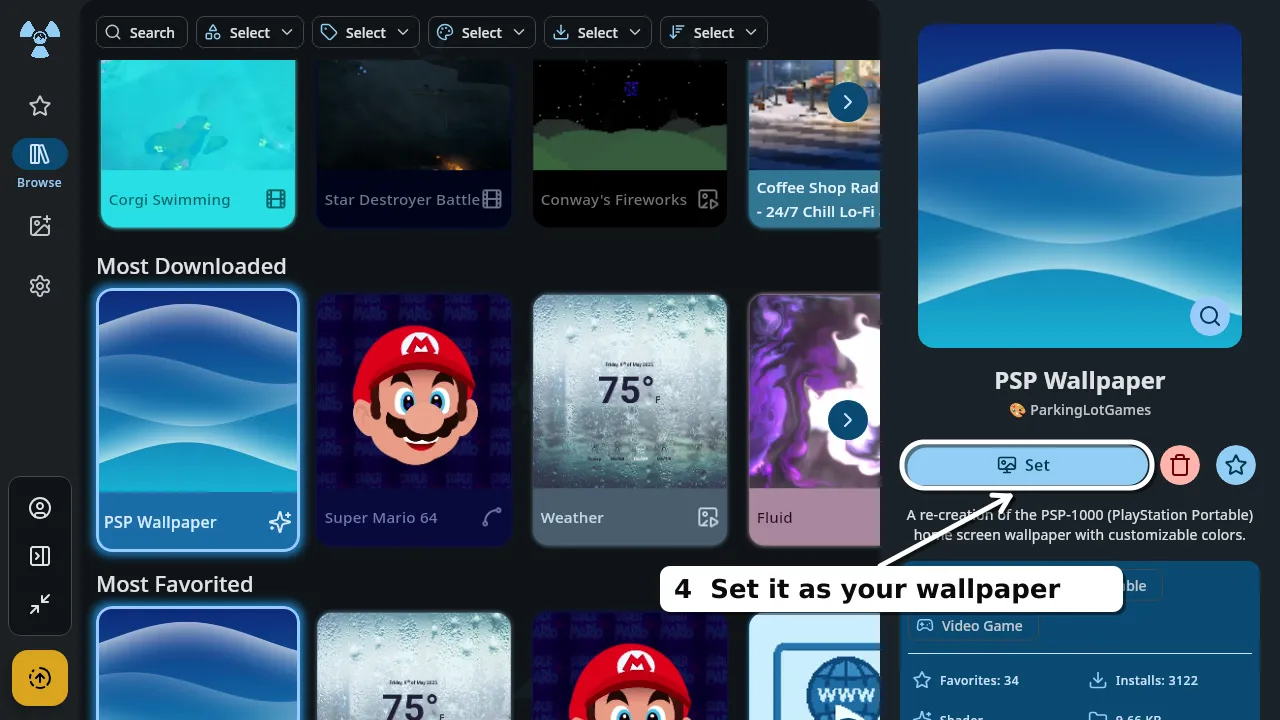
Once it’s downloaded, that same button becomes Set. Click it and your desktop is moving.
Worth knowing
On a MacBook, battery matters. Wallpapers pause under battery saver and there are power-saving modes for when you’re unplugged, so this isn’t a constant tax on your afternoon.
Live wallpapers aren’t necessarily heavy. The one above is a shader — code that draws itself rather than a stored video — at 9.66 KB.
More than one display? Each screen can run its own wallpaper.
Same library elsewhere. The steps are near enough identical on Windows 11 and on Android.
Want your own video instead?
Any clip you already have works — MP4, WebM, MOV, even a GIF — in about fifteen seconds, with no account. That’s its own short walkthrough: how to set any video as a live wallpaper.
And if you came here after searching for something that only exists on Windows, this is the longer answer to what a Mac can and can’t do: live wallpapers on macOS.
Does macOS support live wallpapers natively?▾
Not on the desktop. macOS has dynamic wallpapers that change with the time of day, and it can use a video as a screen saver, but it won't run a moving wallpaper behind your icons while you work. That needs a third-party app.
Do I need an account?▾
No. Browsing, downloading and setting a wallpaper all work signed out. An account is only for creating wallpapers and syncing them across devices.
Will it drain my MacBook battery?▾
Anything animating uses some power. Wallpapers pause when your Mac enters battery saver, and power-saving modes reduce the cost while unplugged.
Should I use the Mac App Store version?▾
The App Store build is a limited "Lite" version. The direct download is the full app, and it is the one to use if you want everything described here.
Free, no account needed, and the same library works on Windows and Android too.
 Download Wallpaper Reactor