How to set a live wallpaper on Windows 11
Last updated: August 2026
Windows 11 can’t do this on its own. Personalization gives you a still image, or a slideshow that swaps between still images, and that’s where it stops. There’s no setting to turn on. You need an app that draws behind your icons for you.
Here’s the whole thing, start to finish.
1. Install Wallpaper Reactor
It’s a free download, and it’s in the Microsoft Store. You don’t need an account for any of this — the library and everything below work signed out.
2. Open Browse and pick something
The Browse tab is your library: hundreds of wallpapers sorted into Recently Added, Hidden Gems, Most Downloaded and Most Favorited. Scroll until something catches your eye, then click it.
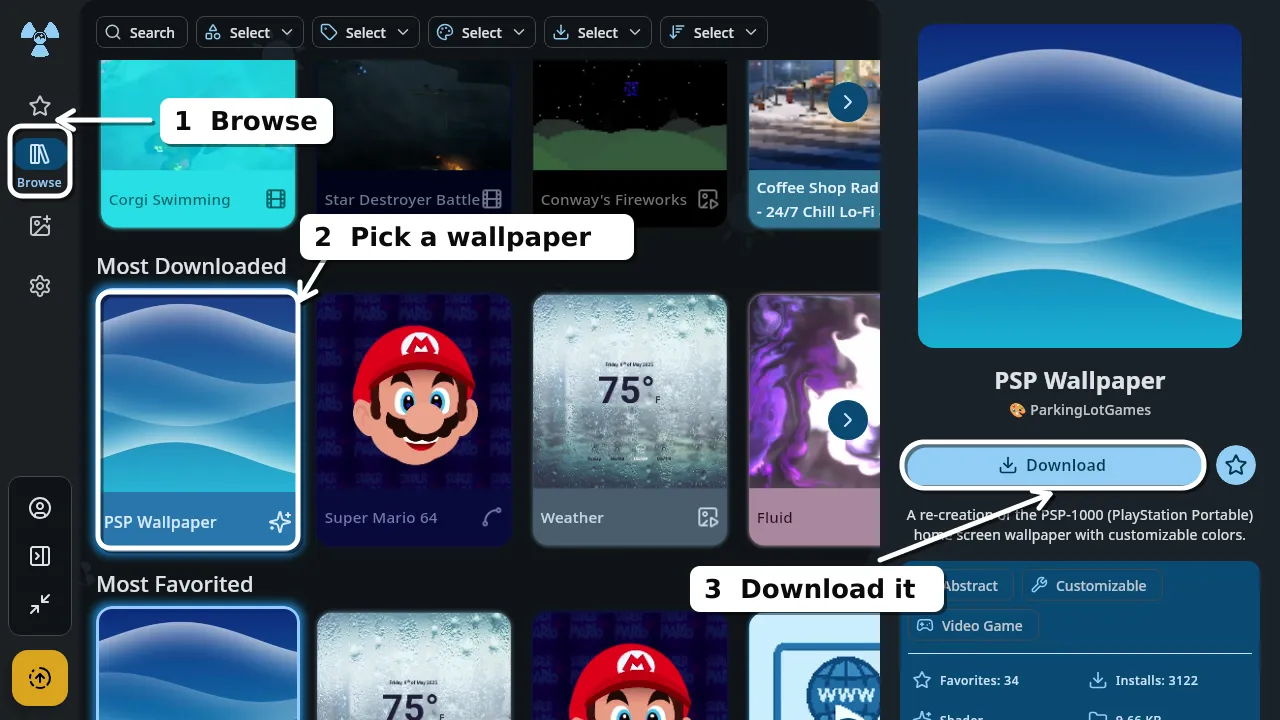
3. Download it
Selecting a wallpaper fills the panel on the right — preview, who made it, size, and a Download button. Click that first. This is the step people miss: until the file is on your PC, there’s nothing to set.
4. Set it
Once it’s downloaded, the same button becomes Set. Click it, and it’s live on your desktop.
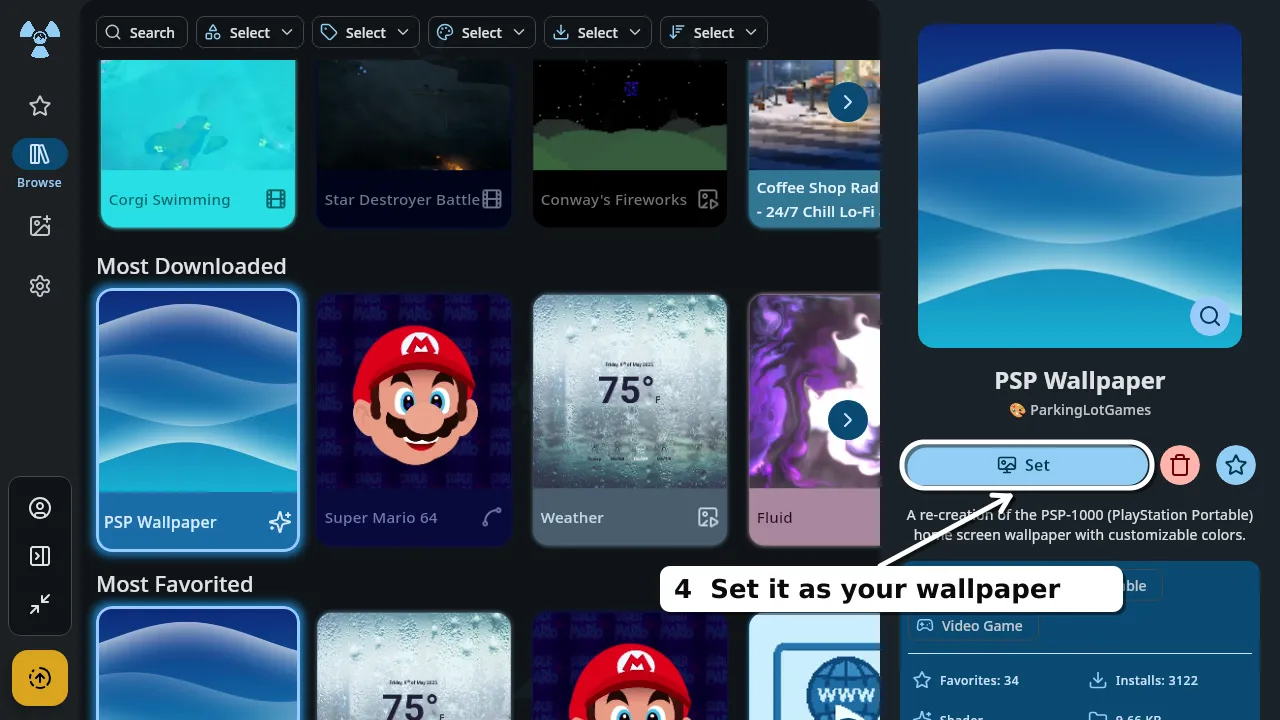
That’s it. Four clicks and your desktop is moving.
Worth knowing
More than one monitor? You choose which screen a wallpaper goes on, so each display can run something different.
Not all live wallpapers are big files. The one above is a shader — code that draws itself, rather than stored video — and it’s 9.66 KB. Smaller than most photos you’ve taken.
It gets out of the way. Wallpapers pause rather than compete with whatever you’re doing, so a game or a fullscreen video isn’t sharing your GPU with your desktop background.
Same library elsewhere. The steps are near enough identical on a Mac and on Android.
Want your own video instead?
You can use a clip you already have — an MP4, a WebM, even a GIF — and it takes about fifteen seconds with no account. That’s a short walkthrough of its own: how to set any video as a live wallpaper.
Does Windows 11 support live wallpapers natively?▾
No. Windows 11 supports a still image or a slideshow of still images. Animated or video wallpapers need a third-party app that draws behind your desktop icons.
Do I need an account?▾
No. Browsing the library, downloading a wallpaper and setting it all work signed out. An account is only needed if you want to create wallpapers and sync them between devices.
Will a live wallpaper slow my PC down?▾
It uses some resources, but wallpapers pause instead of competing with fullscreen apps and games, and performance settings let you cap frame rate and resolution if you want to spend less.
Can I use a different wallpaper on each monitor?▾
Yes. You pick which display a wallpaper applies to, so every monitor can run its own.
Free, no account needed, and the same library works on macOS and Android too.
 Download Wallpaper Reactor